In SNT Explorer, creating a plan is done by defining rules, which you will use to specify which interventions to apply and under which circumstances.
Watch the video below to learn how to create your first plan:
Steps
1. Create a new plan
From the app’s home screen (the Scenarios list), click Create a Scenario, give it a name, and define the time period it covers.
2. Create a first rule
In the left panel, click + to create your first rule. First choose the interventions to apply, then define the criteria to use. You can choose to apply interventions everywhere (check “All organisational units”), or based on criteria that you can freely combine.
Finally, you can also define exceptions to exclude or include specific districts. This is useful, for example, if you know a certain district should be included but the available data is insufficient for the criteria to match. Or if operational constraints would make the intervention unnecessary or not feasible.
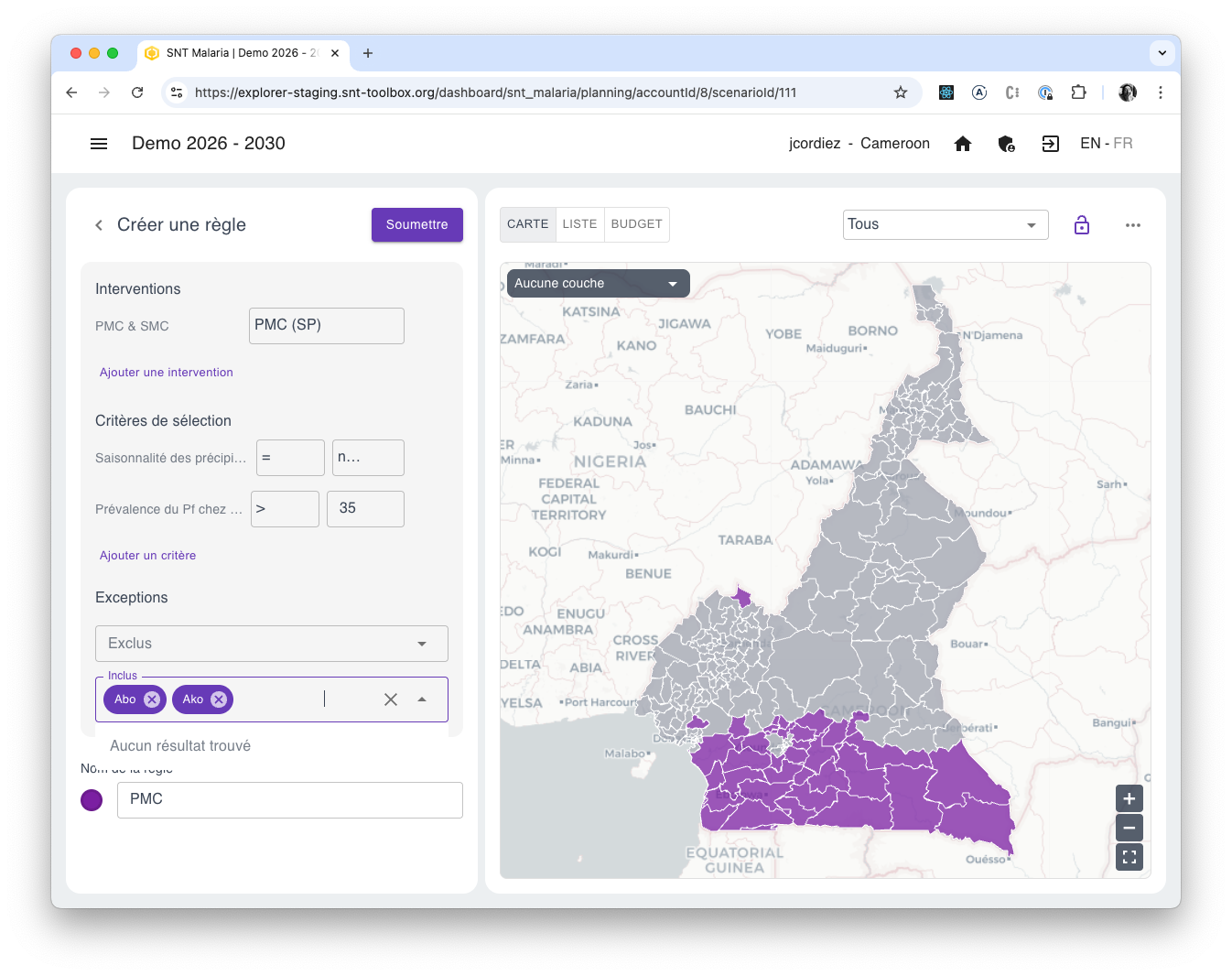
In this example, we created a rule to apply Perennial Malaria Chemoprevention (PMC) where:
- rainfall is not seasonal
- prevalence is above 35
- while also including Abo and Ako.
3. Combine multiple rules
Once this new rule is defined, click Submit to return to the interventions list and add more rules. You can define as many rules as you want. These rules are applied from top to bottom. You can change the order of your rules simply by drag-and-drop.
The order in which rules are applied becomes important when you define rules for interventions that are mutually exclusive, such as PMC and SMC. For example, if your first rule applies PMC everywhere, and then you define a second rule stating that SMC should be distributed in districts with strong seasonality, the “PMC” rule will not be applied where the “SMC” rule applies. However, if you change the order so that SMC is applied first, the PMC rule will override it afterwards and no district will receive SMC.
4. Validate a rule visually
When defining rules, it can be useful to compare them with data layers—for instance, to check whether the rule correctly includes the desired districts. To do this, select a rule and use the dropdown menu at the top-left of the map to display the layer you want to compare against.
